MacBook Screen White Tint or Half White Screen? Here's What's Actually Wrong
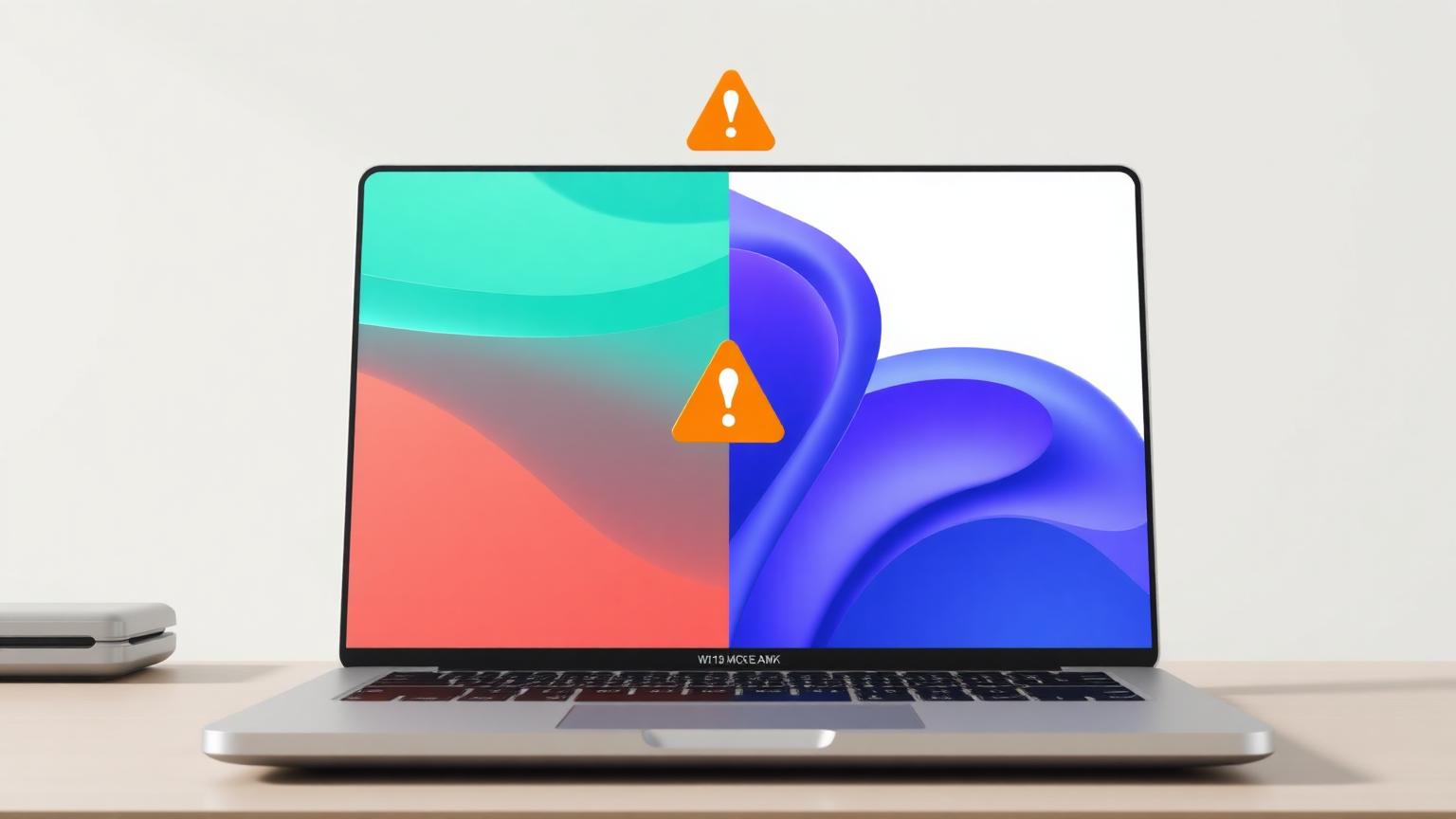
A MacBook display is supposed to be the gold standard — so when yours suddenly looks washed out, milky, or worse, when your laptop half screen white problem appears out of nowhere, it's genuinely alarming. The good news: a surprising number of these cases are software settings, not dying hardware.
Let's separate the five-second fixes from the repair-shop problems, starting with the most common causes.
First, Figure Out Which Problem You Have
These two issues look related but have completely different causes:
- Whole-screen white tint: Everything looks pale, washed out, or slightly milky. Colors lack punch. Whites look "hazy." This is usually software or a panel-wide backlight issue.
- Half screen white (or a white section): One vertical or horizontal region of the display is white, extremely bright, or completely washed out while the rest looks normal. This is almost always hardware.
Run a quick check: open a full-screen white page (our white screen tool works well for this) and then a full-screen black image. If the tint shifts or the affected zone has a hard edge, note exactly where — you'll need this information below.
Fixing a MacBook Screen White Tint (Whole Display)
Work through these in order. In my experience helping friends with this exact complaint, about 7 out of 10 cases end at step 1 or 2.
1. Turn off True Tone
True Tone shifts your display's white point to match ambient lighting. Under warm indoor light it can make the whole screen look yellowish; under some LED lighting it swings the other way and everything looks cold and pale.
Go to System Settings → Displays and toggle True Tone off. Give your eyes ten seconds to adjust before judging.
2. Check Night Shift
Night Shift warms the display on a schedule. If someone set it to "always on" or the schedule is misconfigured, your MacBook screen white tint mystery might just be this. Disable it under System Settings → Displays → Night Shift.
3. Reset your color profile
A corrupted or wrong ICC profile washes out the entire display. Head to System Settings → Displays → Color Profile and select "Color LCD" (or your display's default). If you've installed calibration software in the past, its profile may have loaded incorrectly after an update.
4. Check Accessibility settings
System Settings → Accessibility → Display contains "Increase contrast" and "Reduce transparency" options that alter how whites render. Make sure nothing here was toggled accidentally.
5. Test in Safe Mode
Restart in Safe Mode (hold Shift during boot on Intel Macs; hold the power button and choose Safe Mode on Apple Silicon). If the tint disappears in Safe Mode, a login item or third-party display utility (f.lux, calibration tools, monitor control apps) is the culprit.
6. Still tinted? It's likely the panel
If the white tint survives all of the above plus a fresh user account, the LCD panel or its backlight diffuser is degrading. This shows up on some older MacBooks as a permanent milky haze. At this point it's an Apple Store or authorized repair conversation.
Fixing a Laptop Half Screen White Problem
When exactly half (or a defined section) of the display goes white, software is rarely to blame. Here's the realistic breakdown:
Display cable (flex cable) damage
The ribbon cable connecting the logic board to the display runs through the hinge and flexes every time you open the lid. When it wears or loosens, sections of the screen go white, flicker, or show lines. The telltale sign: the problem changes when you tilt the lid. Open the laptop to different angles — if the white area appears, shrinks, or flickers at certain angles, it's the cable. This is one of the cheaper display repairs.
Panel damage
A drop or pressure on the lid (tight backpack, something heavy on the closed laptop) can crack the internal LCD layers without cracking the glass. The result is a white region, often with faint lines radiating from one point. Sadly this means panel replacement.
Logic board / GPU issues
Rarest of the three. If an external monitor shows the same defect, the problem is upstream of the display — GPU or board level. If the external monitor looks perfect, your MacBook's internals are fine and the fault is in the display assembly.
The external monitor test (do this before any repair)
Connect any external display. This single test tells the repair story:
- External screen perfect → fault is in the built-in display or its cable
- External screen shows the same white area → fault is the GPU/logic board
Walk into the repair shop with this answer and you'll save diagnostic fees and avoid being upsold the wrong repair.
Can You Prevent This?
Mostly, yes:
- Never lift or carry the MacBook by its lid
- Avoid packing it in bags tight enough to press on the screen
- Don't slam the lid; hinge shock transfers to the flex cable
- Keep liquids away — corrosion on the display connector is a slow-motion version of this same failure
If you're seeing tiny white dots or lines rather than a large tinted zone, the causes are different — read our guide to white dots, spots and lines on your screen.
Frequently Asked Questions
Why does my MacBook screen look white and washed out suddenly?
Check True Tone, Night Shift, and your color profile first — these cause most sudden whole-screen tint changes. Hardware degradation happens gradually, not overnight.
Is a half white screen on a laptop fixable?
Yes. Cable-related cases are a relatively inexpensive repair. Panel damage requires replacing the display assembly, which costs more but is routine work for any repair shop.
Does the white area moving when I open the lid mean anything?
It's the classic sign of a worn display flex cable. Mention this symptom specifically when you book a repair.
Can I keep using a MacBook with half the screen white?
It won't hurt the machine, and connecting an external monitor works as a stopgap. But cable faults can worsen with every lid movement, so repair sooner rather than later.
How do I test whether my MacBook display is healthy?
Run a full-screen white test and a black test back to back. Uniform color with no tinted zones, dark patches, or lines means your panel is in good shape.